
Application Overview
Application Overview
Section titled “Application Overview”The application window contains a menu bar, a toolbar, editors and views, the left pane and the right pane.
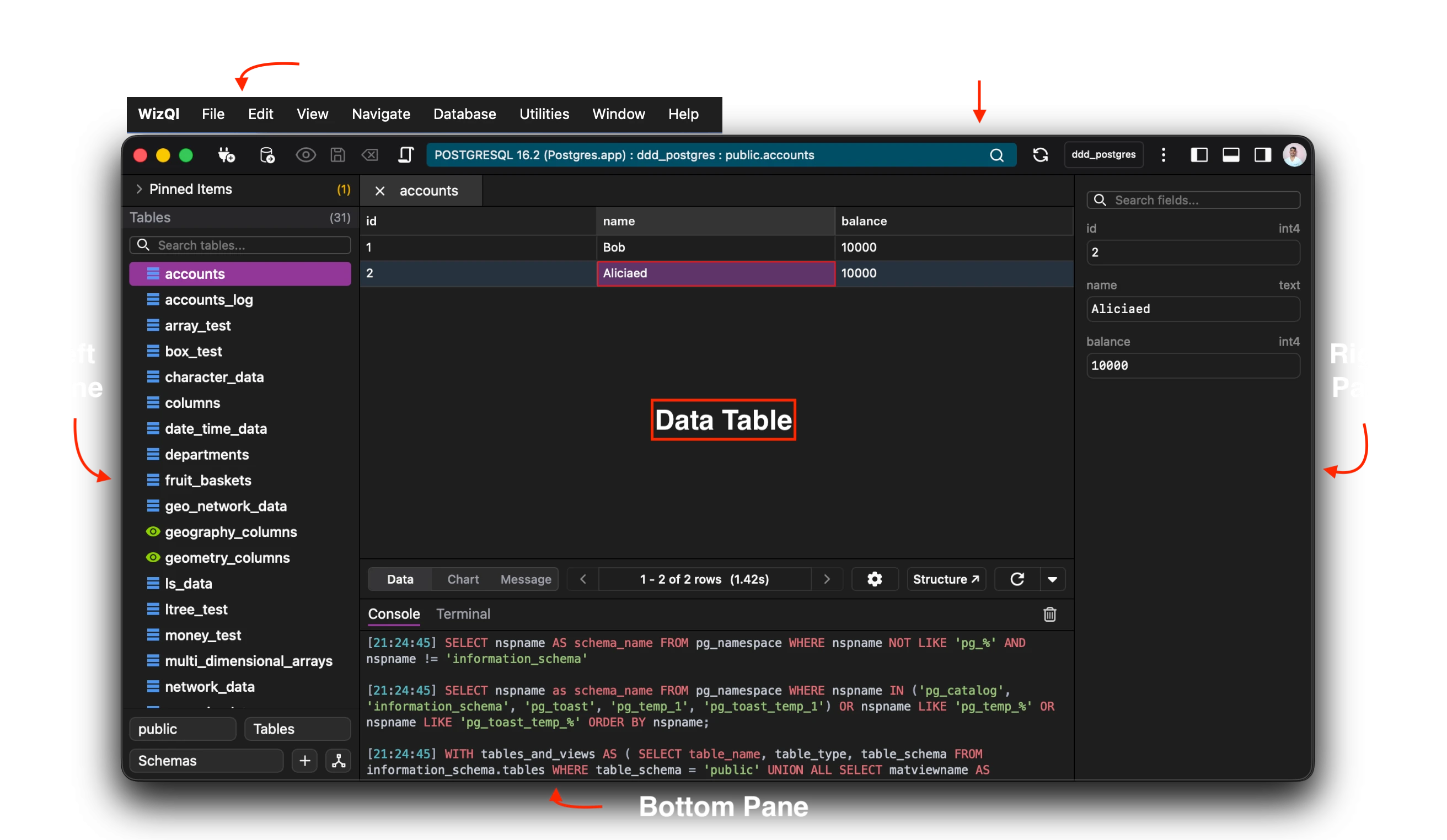
Menu Bar
Section titled “Menu Bar”The menu contains the following menus:
- The File menu contains menu items for opening database connections, importing and exporting databases and items.
- The Edit menu contains global commands like Cut, Copy, Paste, Delete, Preview, Commit, Discard.
- The View menu contains shortcuts for showing and hiding views and sidebar along with the ability to zoom in and out of the application.
- The Navigate menu provides options to navigate tabs and open and close tabs.
- The Window provides options for minimising and maximising the application windows.
- The Help menu provides options for opening documentation, checking for updates, viewing licenses and reporting issues with the application.
Toolbar
Section titled “Toolbar”The toolbar contains button the the basic and frequently used commands.

It is divided into various zones according to the functionality.
-
Connections and Databases. The connections button allows you to open, create, edit and delete connections to your databases. The databases button allows you to open, edit, create, delete the databases available in the current connection.
-
Edit Zone The edit zone consists of the preview, save and delete buttons. Preview - The preview button allows you to view the current changes made to the database in the form of sql statements. Save - The save button allows you to commit all the changes currently pending. This commits changes across all open tabs of the current connection. Note: In order to commit changes of the currently selected tab, you can use the Keyboard Shortcut:
Ctrl+S (Windows/Linux)orCmd+S (Mac). Delete - The delete button lets you reverse all the non-committed changes. -
Connection Info The connection info shows you the current information of the currently connected database. The hierarchy is as follows:
Current Connection > Database Name > Item Name
💡Tip: Clicking on the connection info will popup a dialog from the bottom which will give you more information about the current connection along with the ability to change the connection color to something custom.
The search icon allows you to search and open anything in the current database.
- Workspace Area The workspace area has three buttons refresh, databases manager and more information.
Refresh - The refresh button refreshes the complete database fetching all the latest information across all tabs.
Note: If you need to refresh just the current tab, you can do it by using the Keyboard Shortcut: Ctrl+R (Windows/Linux) or Cmd+R (Mac).
Workspace Manager- The workspace manager allows you to open and close multiple connections in the same window. It treats each connection as a workspace.
More information- This button contains option for viewing the history and the saved queries.
- Panes & User This zone consists of three buttons, the options to hide and show the left pane and the right pane, along with the user information.
Right Pane
Section titled “Right Pane”The right pane allows you to quickly and efficiently edit and view the currently selected row from the editor view.
Editor
Section titled “Editor”The editor contains all your views. It shows you all the open tabs, and queries along with data. It can be used to view history and saved queries. Many views can be opened simultaneously in the editor.
Left Pane
Section titled “Left Pane”The left pane is available on the left side of the application view. It houses all the tables, function, indexes, etc. It allows you to manage your tables, open then in the editor view and also switch schemas.