
Saved Query
Saved Queries
Section titled “Saved Queries”Queries can be saved in order to reuse them later on.
The process to save a query is as follows:
- When using the query editor, use keyboard shortcut:
Ctrl+S (Windows/Linux)orCmd+S (Mac)to bring up the save query dialog. - Enter in your desired name to identify the query and save.
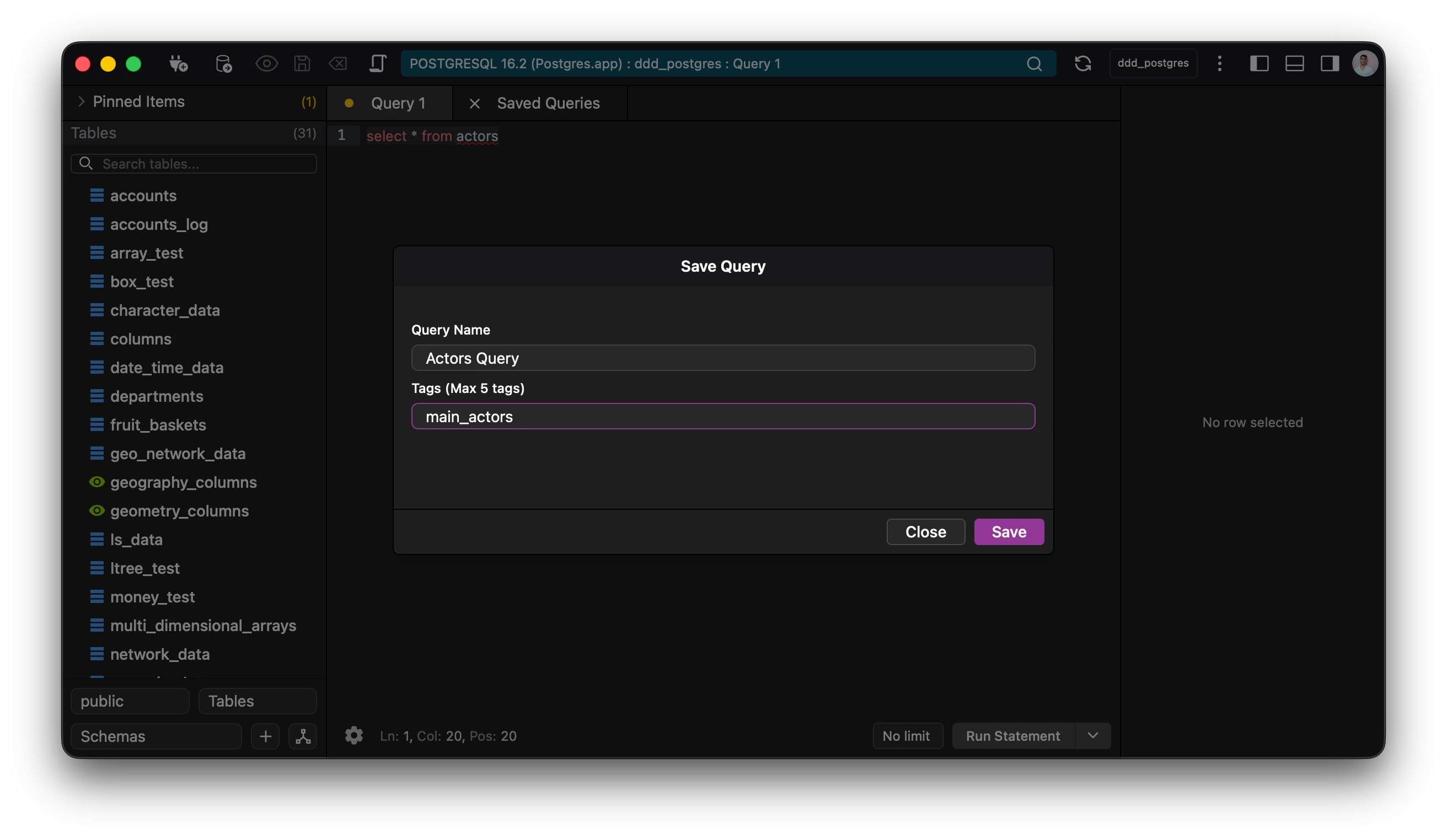
Saved queries appear in the saved queries view, which is accessible through the toolbar (three vertical dots) or via the Keyboard Shortcut: Ctrl+B (Windows/Linux) or Cmd+B (Mac).
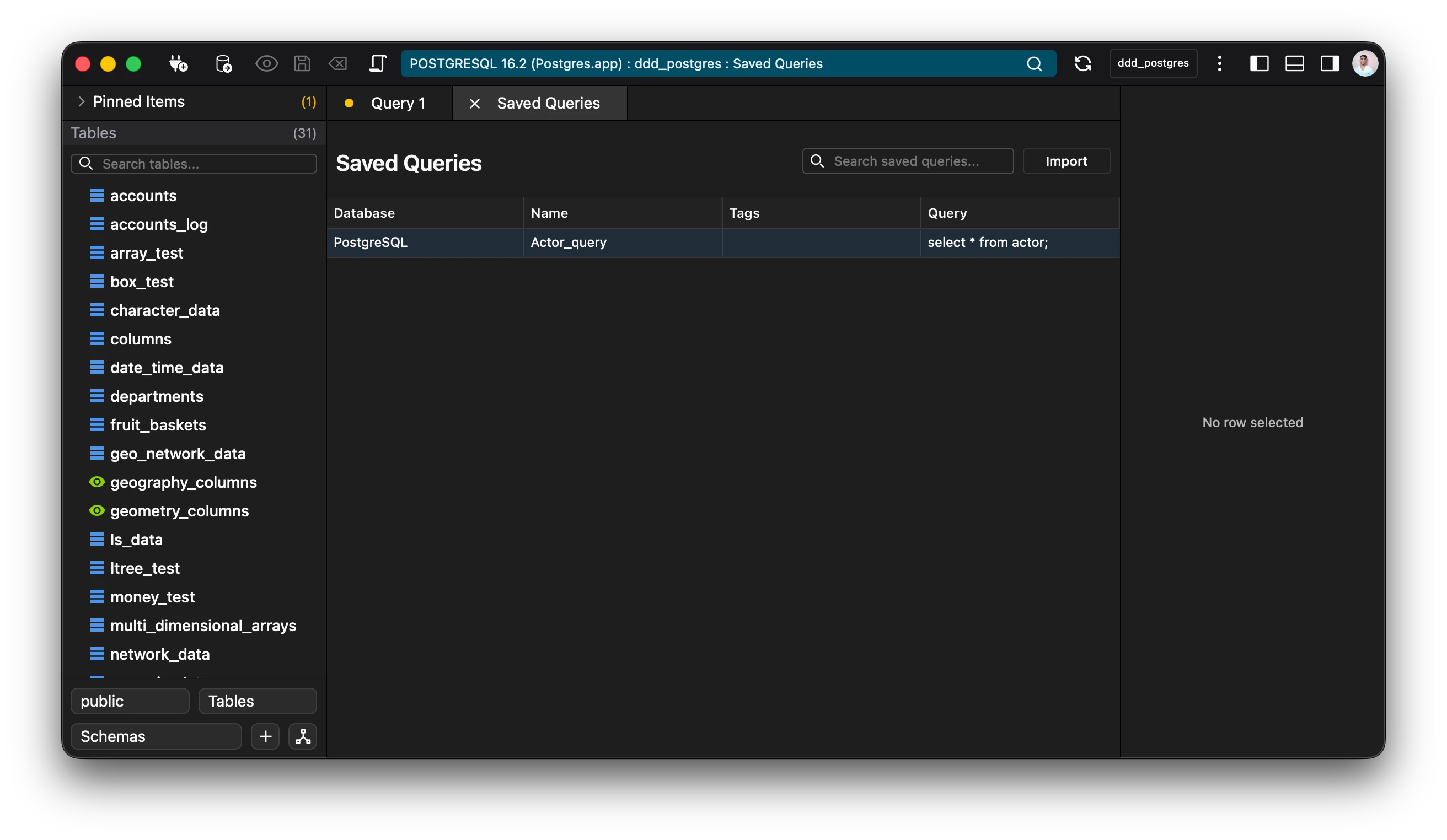
The saved queries are sorted automatically and are searchable.
💡Tip: Double click on a query to open it in a query editor.
A number of operations can be done using the saved query view, which are available through the context menu.
The options for a saved query are as follows:
- Run - Open a query editor and directly run the query.
- Open - Opens the query in a query editor to be run.
- Copy - Copies the query to the clipboard.
- Edit - Opens a query editor for editing.
- Import - Import a query using a sql file.
- Export - Export a query to a sql file.
- Delete - Deletes the saved query.
Edit Query
Section titled “Edit Query”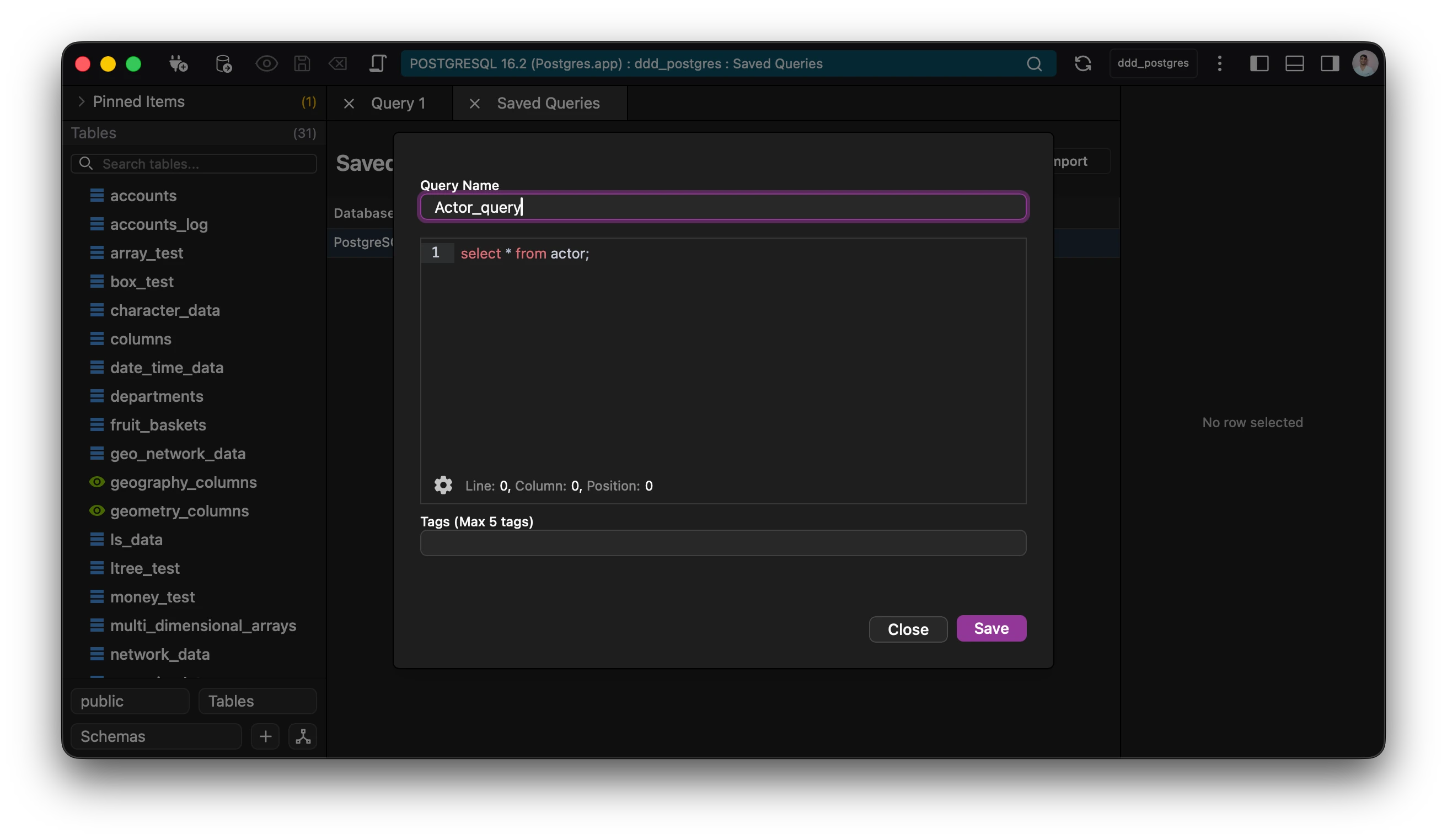
The edit query field allows the query to be edited. It enables the user to add and modify tags along with change and edit the query contents.