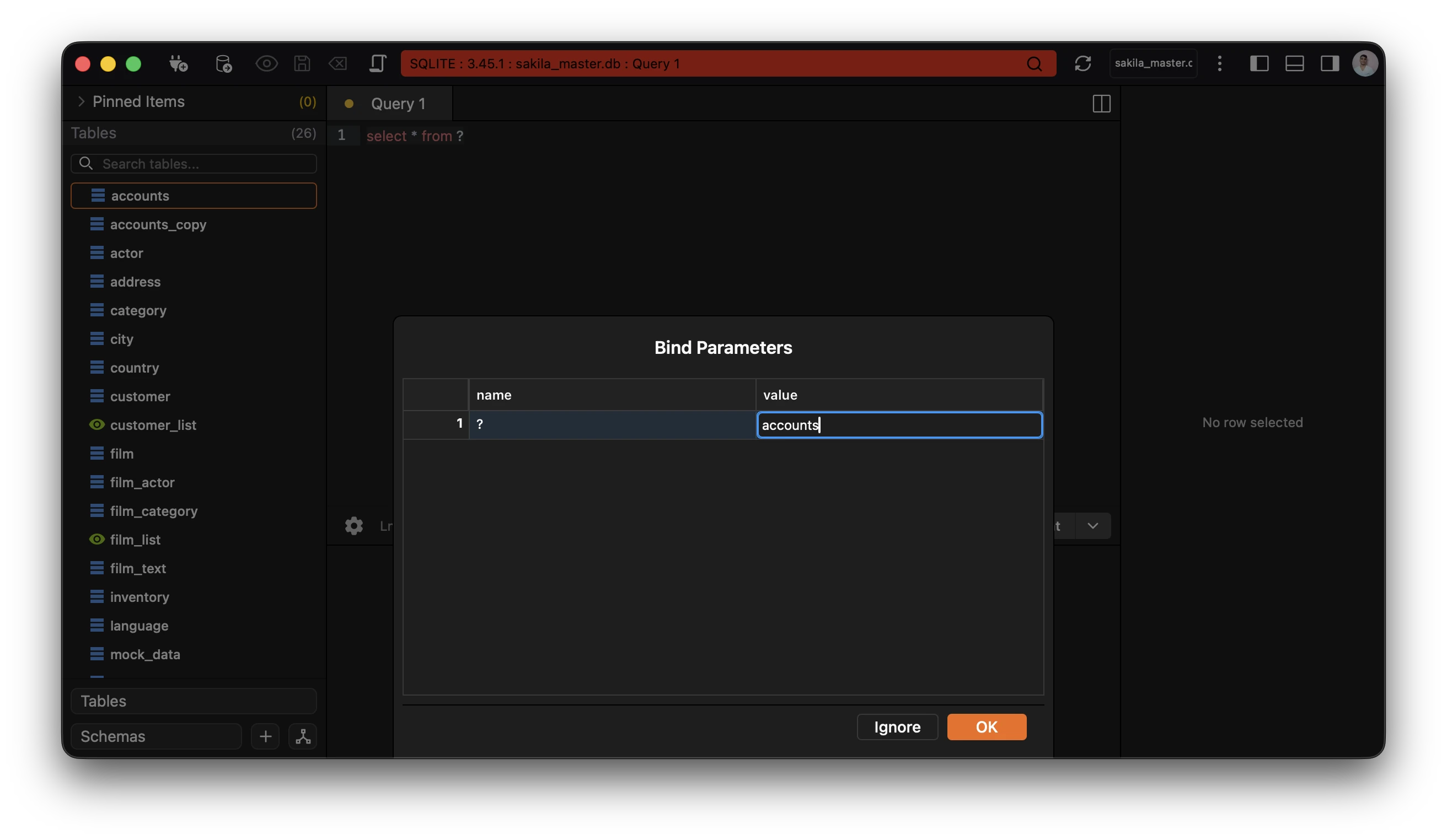
Editor Basics
Editor Basics
Section titled “Editor Basics”The editor is a code editor. If you have used any code editor, online or offline, you should feel right at home.
Open an editor
Section titled “Open an editor”The editor can be opened by opening a new tab or by using the toolbar.
Keyboard Shortcut: Ctrl+T (Windows/Linux) or Cmd+T (Mac)
By default opening a new tab opens the editor view.
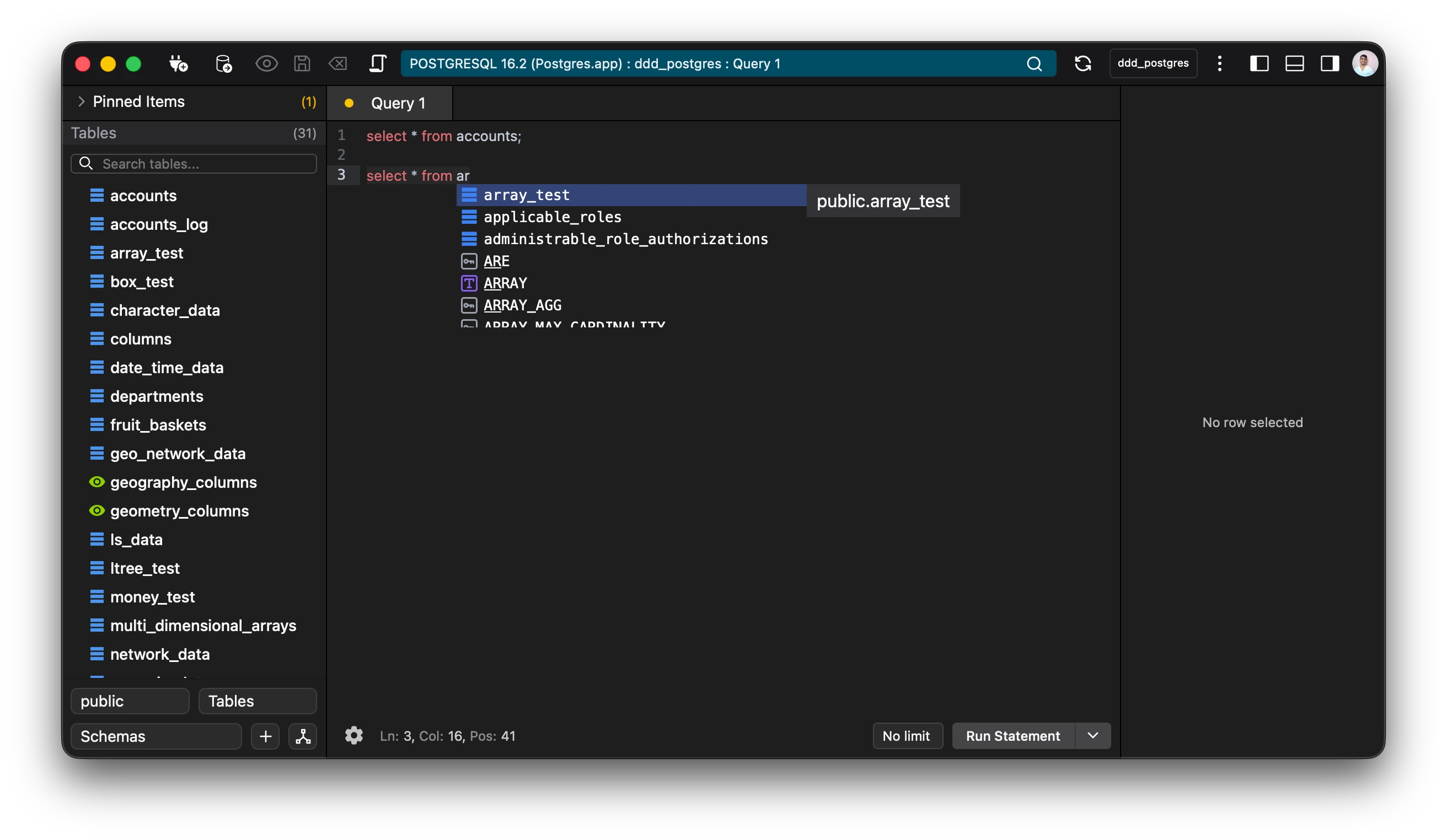
Executing queries
Section titled “Executing queries”Any queries related to the database can be executed via the editor.
The editor supports executing single statements as well as all the statements as a whole.
To execute a single query, make sure that the cursor is on the statement to be executed and use keyboard shortcut: Ctrl+Enter (Windows/Linux) or Cmd+Enter (Mac).
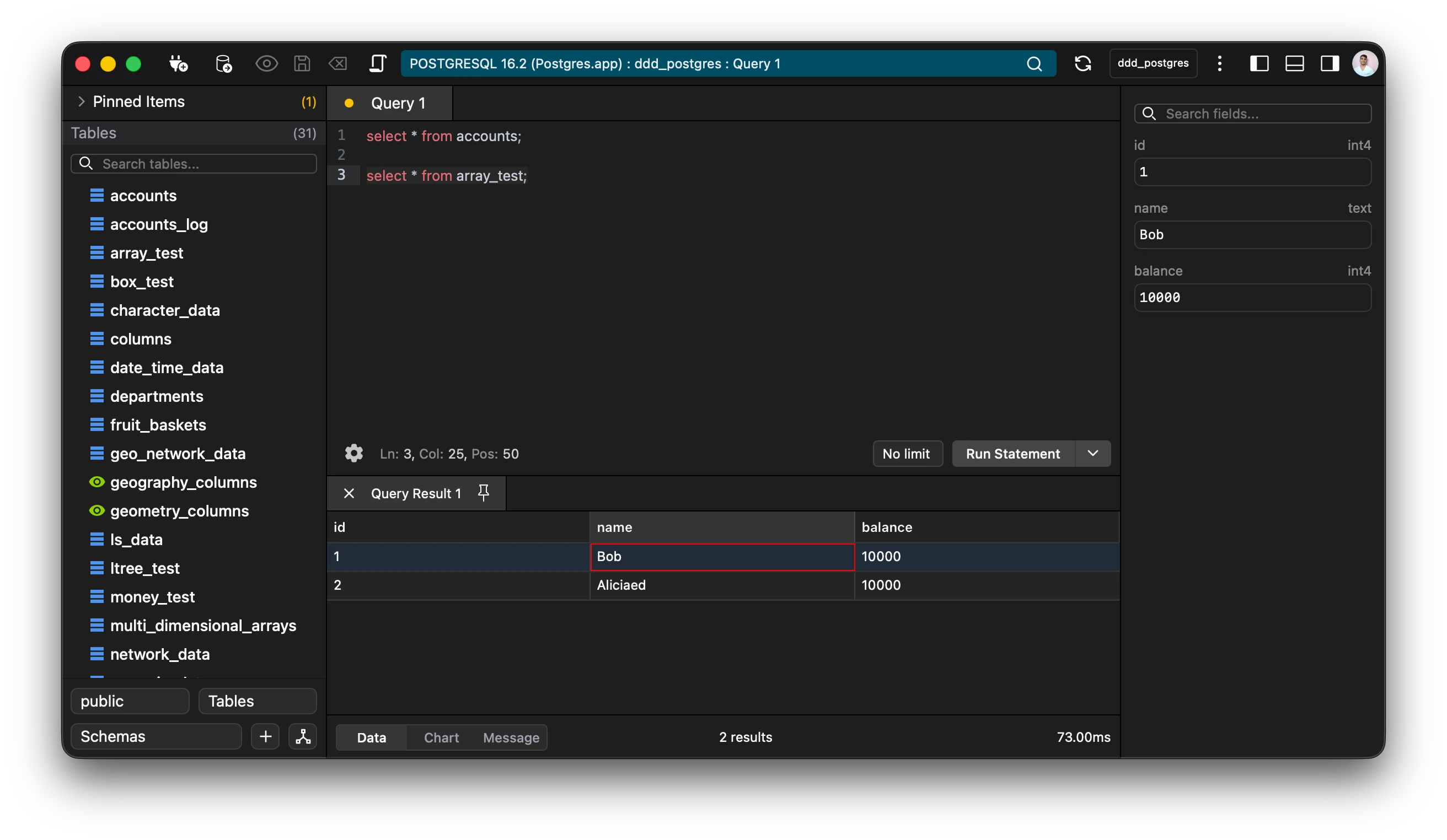
Alternatively, a toolbar is also available at the bottom of the editor to execute queries.
To execute all the queries in the editor use keyboard shortcut: Ctrl+Shift+Enter (Windows/Linux) or Cmd+Shift+Enter (Mac).
💡Tip: Limit the number of query results by using the editor toolbar.
Search and replace
Section titled “Search and replace”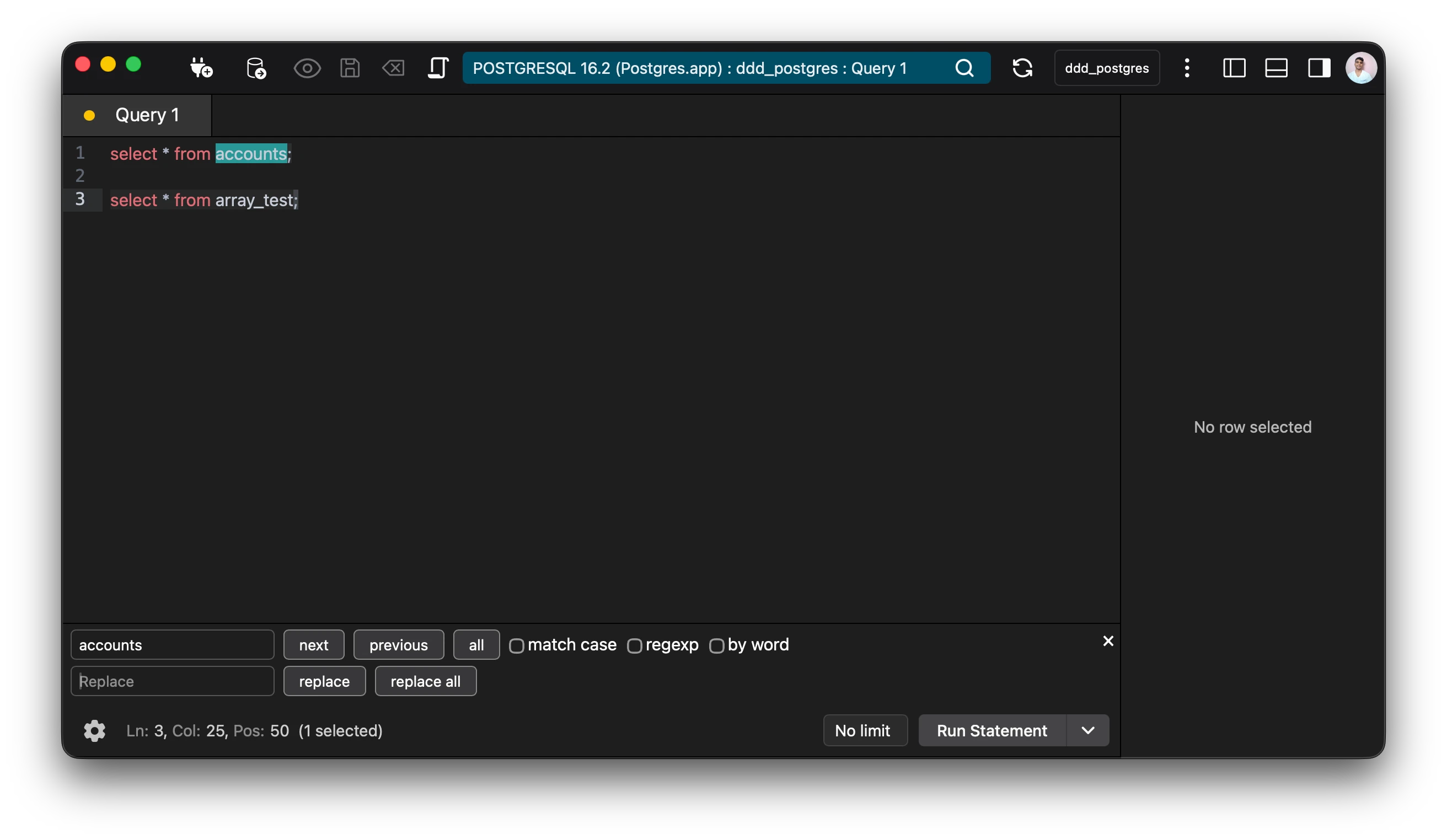
Keyboard Shortcut: Ctrl+F (Windows/Linux) or Cmd+F (Mac) opens up the search and replace menu.
Vim mode
Section titled “Vim mode”The gear icon the toolbar of the editor allows you to switch the keybindings from default to vim.
Prettify
Section titled “Prettify”The editor comes with an inbuilt sql formatter.
Prettify your statements
Keyboard Shortcut: Ctrl+Shift+F (Windows/Linux) or Cmd+Shift+F (Mac).
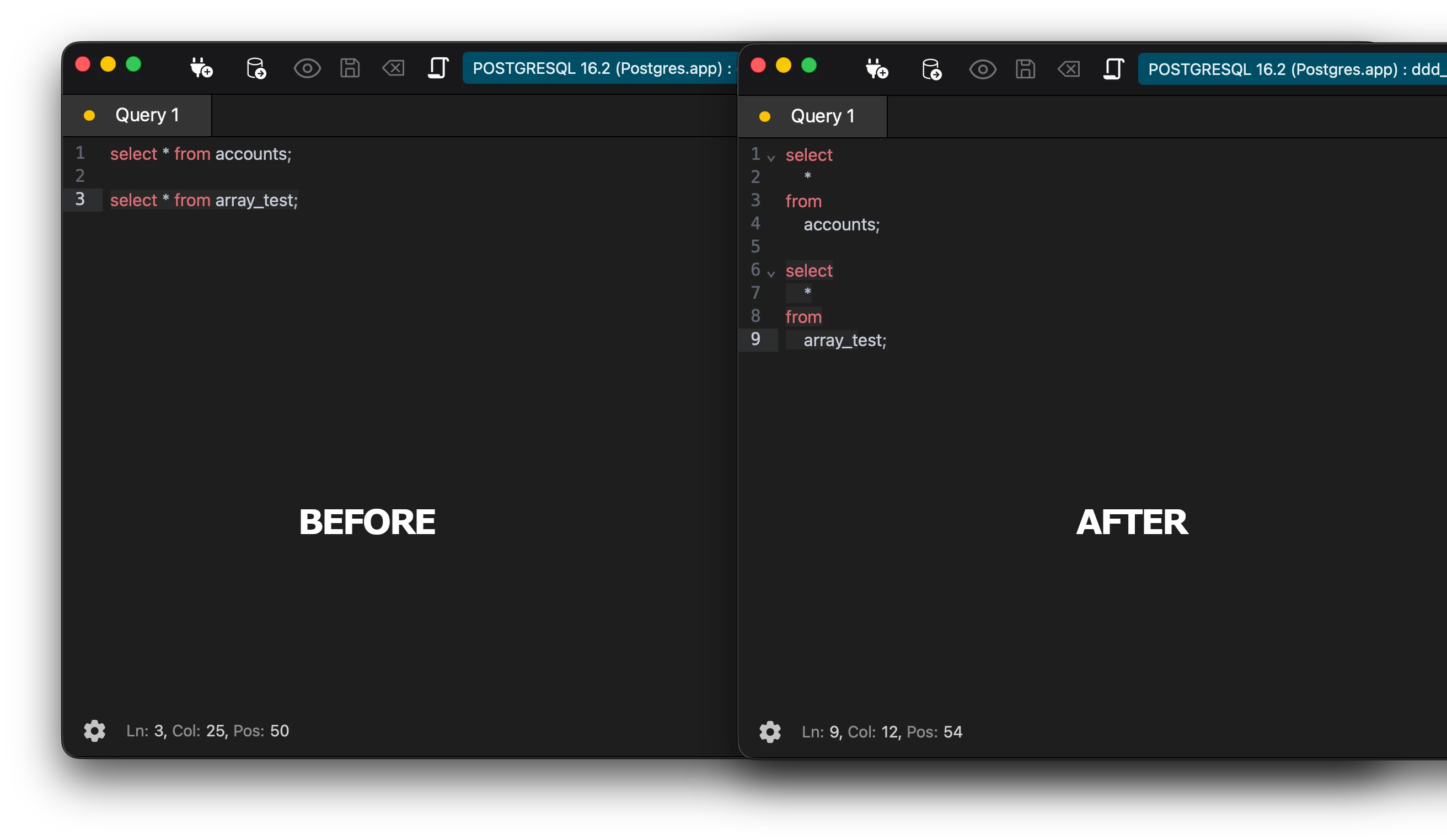
Note: Formatting only works on valid sql statements. The text in the editor will not be formatted if there are any errors.
Split Tabs
Section titled “Split Tabs”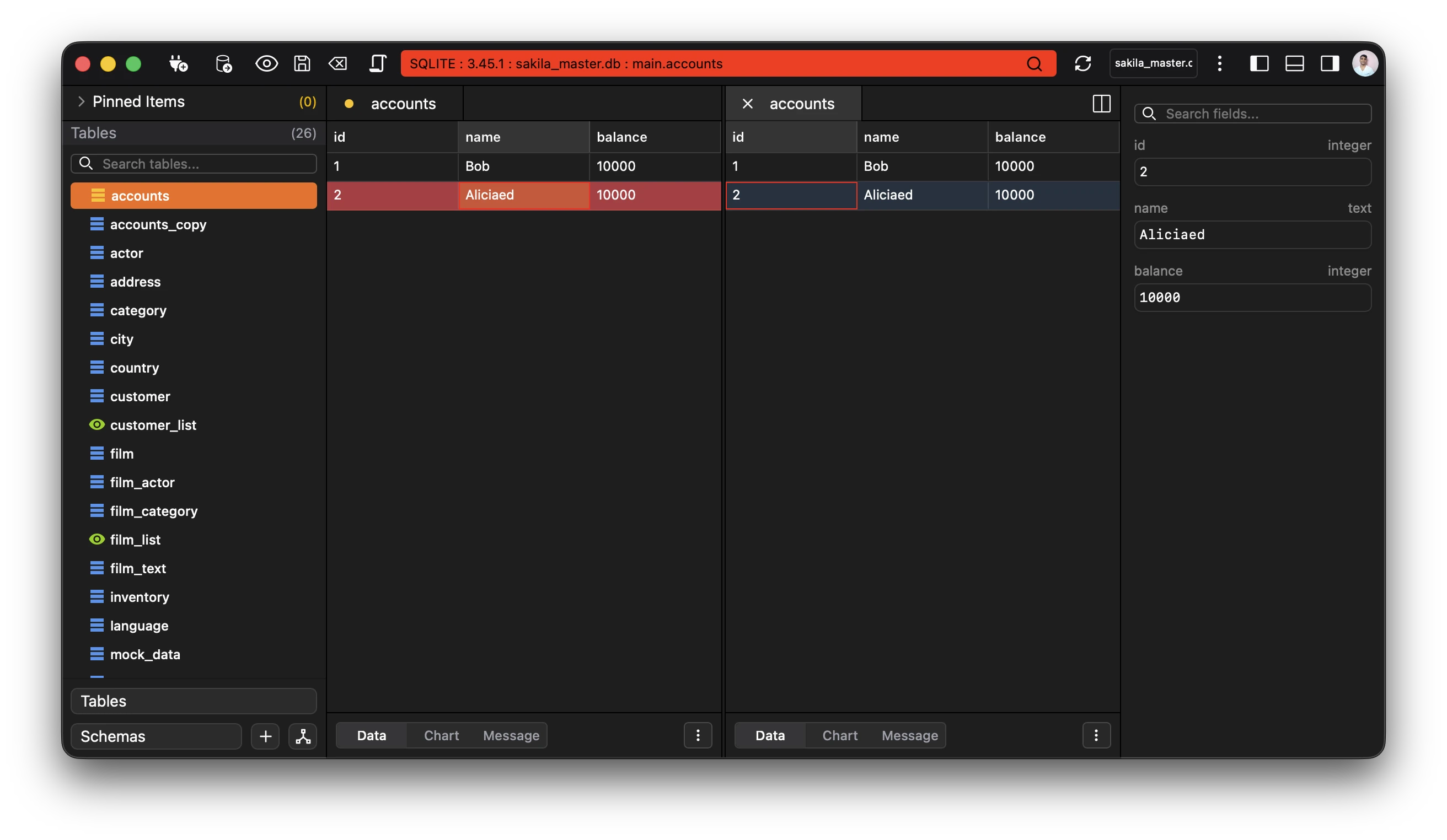
Ctrl+\ (Windows/Linux) or Cmd+\ (Mac).
Params Substitution
Section titled “Params Substitution”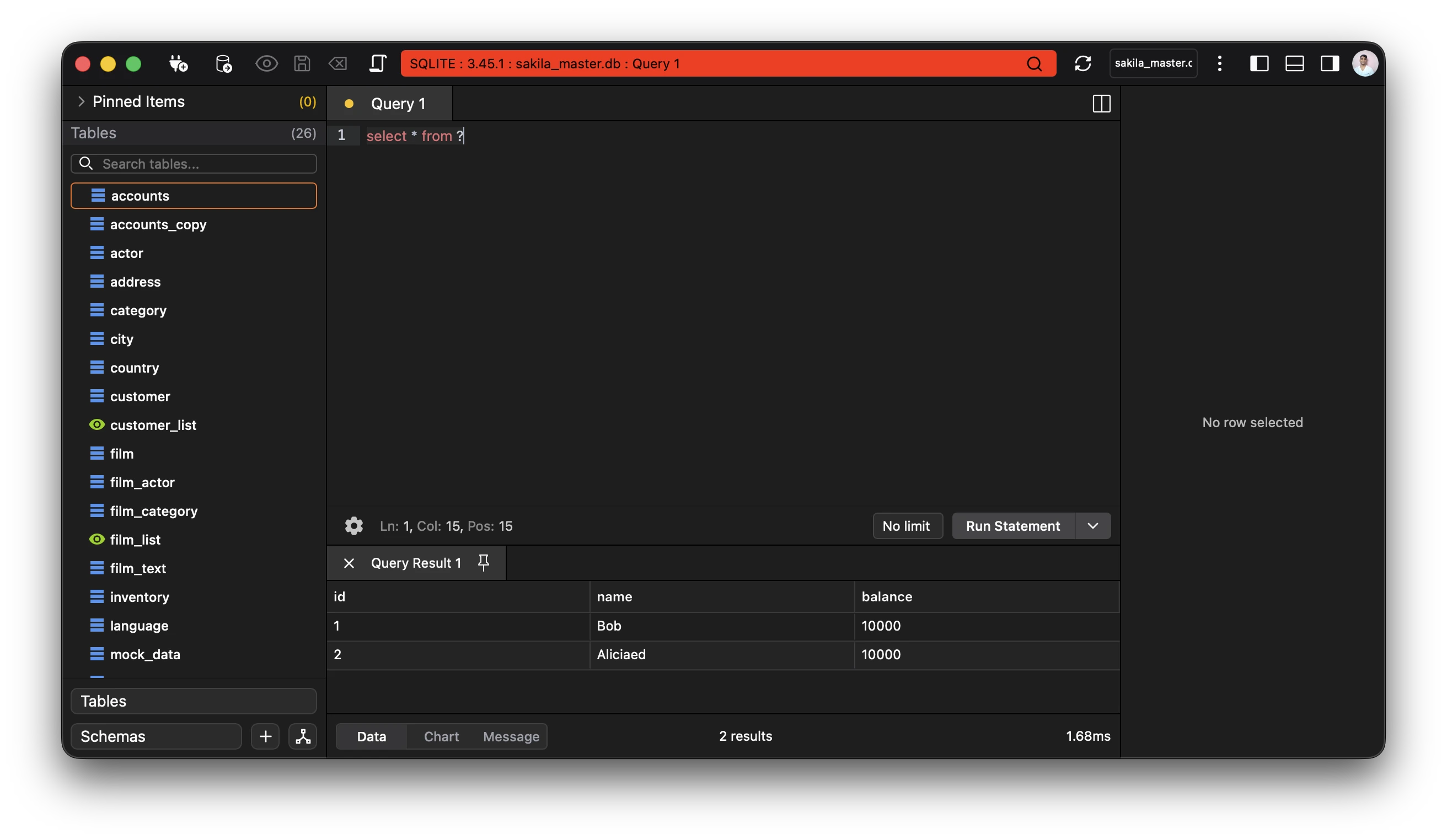
Params substitutions work intelligently according to database type.
eg:
PostgreSQL and MongoDB = $1, $2, $3 SQLite and LibSQL = ?, ?1, :name, @name, $name MySQL and IBM DB2 = ? DuckDB = ?, $name